So, in Window 8 Consumer Preview the Start Button/Pearl is
hidden and here you thought it was removed! Just move the mouse to the lower
left corner of the display to reveal the Start Button. It looks like:
Postings from a Technologist specializing in Enabling Essential Business Technology Solutions to Empower! Focus Areas include: Microsoft’s Small Business Server, Windows, Office, Office 365, Intune, Mobile & Hyper-V; SonicWALL’s Next Generation Firewalls; and, Apple iOS.
Saturday, March 10, 2012
Windows 8 Start Button
How to create a Windows 8 “Windows to Go” Bootable USB 3 Drive
Here is what you need to create the mobile “Windows to Go”
USB Drive that boots Windows 8 Consumer Preview:
- A PC running Windows 8 Consumer Preview (32 or 64 bit)
- Windows 8 Consumer Preview ISO image 32-bit
- Windows Assessment and Deployment Kit (ADK) for Windows® 8 Consumer Preview
- A USB 3.0 disk at least 32GB or larger - Don’t worry you don’t need a USB 3.0 port on the computer where you will use “Windows to Go”.
- Windows 8 Consumer Preview ISO image 32-bit
- Windows Assessment and Deployment Kit (ADK) for Windows® 8 Consumer Preview
- A USB 3.0 disk at least 32GB or larger - Don’t worry you don’t need a USB 3.0 port on the computer where you will use “Windows to Go”.
Install the Deployment Tools feature when running the
Windows ADK installation onto PC running Windows 8 Consumer Preview.
Prepare the USB 3.0 disk using DiskPart:
- Open a Command Prompt (Admin)- Run DiskPart from the Command Prompt
- Run List Disk
- Select the USB disk, run Select Disk X (where X is the USB Drive #)
- Wipe the USB disk clean, run Clean
- Create a partition on the USB disk, run Create Partition Primary
- Format the partition, run Format FS=NTFS Quick
- Make the partition active, run Active
- Exit DiskPart, run Exit
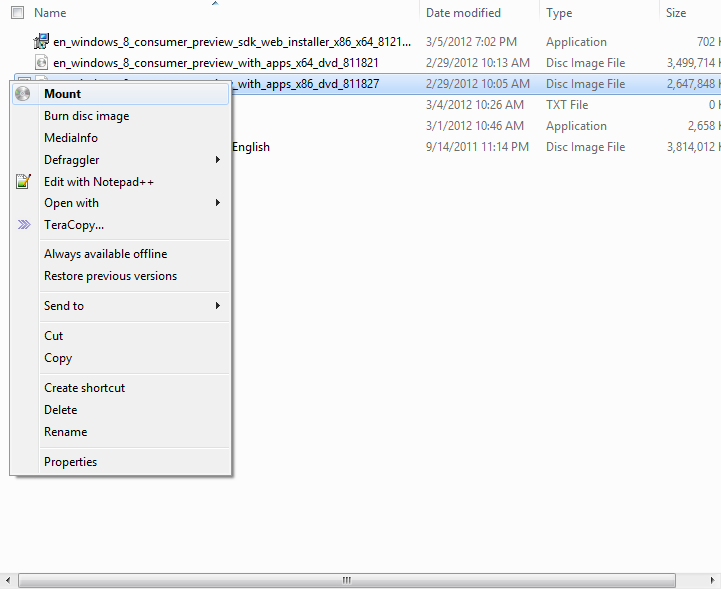
Right-click the ISO and select Mount to mount the
Windows 8 ISO.
I’m running 64-bit so I run CD C:\Program Files (x86)\Windows
Kits\8.0\Assessment and Deployment Kit\Deployment Tools\amd64\DISM to change
the command prompt to the directory that contains the AIK Tools.
To install the files from the wim, run imagex.exe /apply X:\sources\install.wim
1 Y:\ (Where X is the mounted ISO image and Y is the USB disk drive
letters.
To make the USB disk bootable, run bcdboot.exe X:\windows /s X: /f
ALL where the two Xs are the drive letter for the USB disk.
You are finished; you can now use this USB disk to boot into
Windows 8 from any capable computer. This is a fairly locked down version of
Windows 8, so some features won’t be available.
Windows 8 Shortcut Keys
Here are some really helpful key combinations if you are
using Windows 8 Consumer Preview.
Key
Combinations
|
Description
|
Where
|
Windows
|
Toggles
between the Desktop & Start or between Start & the foremost Metro
app.
|
Both
|
Windows .
or Shift .
|
Move the
split to the right or left.
|
Desktop
|
Windows +
or -
|
Magnifier
|
Both
|
Windows
Arrows
|
Aero Snap
|
Desktop
|
Windows
Enter
|
Narrator
|
Both
|
Windows
Pause
|
System
Information
|
Desktop
|
Windows
PgDn or PgUp
|
Move tiles
(Metro) or taskbar (Desktop) to the right or the left.
|
Both
|
Windows
PrintScreen
|
Takes
Screenshot and saves as PNG in Pictures Library
|
Desktop
|
Windows
Spacebar
|
Switch the
input language and keyboard layout
|
Both
|
Windows
Tab
|
Toggles
between other open apps and Start
|
Both
|
Windows #
|
Launches
the nth shortcut on the Desktop taskbar. Windows + 1 will launch the first
application in the list (from left to right). From Start the screen first
switches to the Desktop.
|
Desktop
|
Windows B
|
Select the
tray notification area. From Start the screen first switches to the Desktop.
|
Desktop
|
Windows C
|
Charms and
Time, Date & Notifications.
|
Both
|
Windows D
|
Toggles
Show Desktop. From Start the screen first switches to the Desktop.
|
Desktop
|
Windows E
|
Windows
Explorer with Computer view displayed. From Start the screen first switches
to the Desktop.
|
Desktop
|
Windows F
|
Search
Files.
|
Both
|
Windows G
|
Cycles
between Gadgets on the Desktop
|
Desktop
|
Windows H
|
Share.
|
Both
|
Windows I
|
Settings
for the Start or Desktop screens and provides access to Networks, Volume,
Screen Brightness, Notifications, Power and Language.
|
Both
|
Windows K
|
Displays
Connect for Devices.
|
Both
|
Windows L
|
Lock PC.
|
Both
|
Windows M
|
Minimizes
all open windows and takes you to the Desktop.
|
Desktop
|
Windows O
|
Toggles
the orientation on slate and tablet PCs.
|
Both
|
Windows P
|
Project or
Second screen controls.
|
Both
|
Windows Q
|
Search
within Apps.
|
Both
|
Windows R
|
Run. From
Start the screen first switches to the Desktop.
|
Desktop
|
Windows T
|
Shows
thumbnail preview of the applications on the Taskbar. From Start the screen
first switches to the Desktop.
|
Desktop
|
Windows U
|
Ease of
Access Center. From Start the screen first switches to the Desktop.
|
Desktop
|
Windows W
|
Search
within Settings.
|
Both
|
Windows X
|
Windows
Mobility Center. From Start the screen first switches to the Desktop.
|
Desktop
|
Windows Z
|
App Bar in
Start or a Metro-style app.
|
Start
|
Ctrl Shift
Esc
|
Task
Manager
|
Desktop
|
Ctrl
Windows F
|
Find
Computers
|
Desktop
|
Shift
Right-Click on a file
|
Adds Copy
As Path to Right-Click Menu
|
Desktop
|
Shift
Right-Click on a folder
|
Adds
Command Prompt to Right-Click Menu
|
Desktop
|
Shift
Right-Click on a grouped Taskbar App
|
Opens
Right-Click Menu for Group
|
Desktop
|
Shift
Right-Click on a Taskbar App
|
Opens
Advanced Right-Click Menu for App
|
Desktop
|
Thursday, March 3, 2011
Video - Upgrading through every version of windows
This is a great video for all of the PC techies. Enjoy!
Friday, December 24, 2010
My Blackberry Is Not Working!
Cheers to Dana Epp who found this beautiful video! If you are having technology problems then this video may help. ;)
Wednesday, December 22, 2010
Tim Carney named in the Top 150 most influential people in the SMB channel!

I am honored to be included in this list. Congratulations to the others who are included in this list and congratulations to the community for being an open place to share!
From the article in the SMB PC magazine, "As the SMB channel partner community has matured, discussions between SMB Technology Network (SMBTN) and SMB Nation—à la SMB PC magazine—have resulted in the Top 150 list."
Subscribe to:
Posts (Atom)